Complex Diagrams

June 29, 2008

The Electoral Vote Race

Filed under: diagrams, graphs, election — Noah @ 4:48 pm

Electoral-Vote.com is an excellent and popular site for tracking polls for president on a state by state basis. One of the nice features is a historical graph that shows the changing number of electoral votes for each candidate over the election season.

Currently it looks something like this:
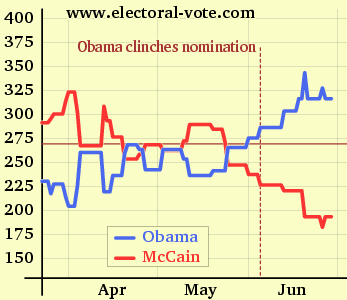
Electoral Vote Graph (cropped)
(click to see the original on electoral-vote.com)

Just for fun, I decided to see what it would look like showing the candidate totals as a single shared line. (This is similar to the epic graph representing the Senate History Timeline.)

Revised Electoral Vote Graph

In the revised version, the vertical axis counts votes for Obama going upward, as in the original, and votes for McCain going downward. The axis labels are color coded to reflect the candidate they represent. The color of the line reflects the candidate with more votes for that time period.

Theoretically, when the votes total line is above the 271 line, Obama is ahead; when it’s below the 271 line, McCain is ahead. However, the revision isn’t perfect, and accuracy suffers relative to the original in a few ways.

  • In situations where a state (such as Florida) is tied, neither candidate is credited with the votes, so the total number fluctuates. This is not handled well in the revision.

  • It’s a little trickier to represent the situation when the count is very near 270 (see late April and early May in the original).
  • Because the total number of electoral votes is 538, it’s impossible to use round numbers at both ends of the shared grid lines.

While not a superior solution overall, the revised version does have some merit. As a rough tool for observing trends, I think a single line is cleaner, easier to follow, and the changing colors are a little easier to tell a story with.

June 1, 2008

Pixel rulers in Visio

Filed under: diagrams, mine, how to, user experience, interface, visio — Noah @ 11:05 pm

Should you be required to work in Visio, you may well find yourself, as I did, wishing to measure your drawing in pixels. I couldn’t figure out how do do it, though Visio does support such diverse measurements as Ciceros and Didots.

I finally found the definitive answer from Microsoft: For some types of drawings, you may want to change the measurement units to pixels. However, a pixel isn’t a unit of measurement. A pixel is just a dot on a screen and the size of the dot varies for different screens. To simulate pixels, set the measurement units to points.

Needless to say, this is not satisfying. It’s true a pixel is only an on-screen measure, and is clearly only useful for a few, obscure situations, such as when creating interface mockups, wireframes, or prototypes for software, the web, or any other sort of images meant to be viewed on a screen.

Luckily, Visio provides a set of features that allow a fairly simple, two step work-around. Warning: doing this on existing Visio documents may severely distort your existing drawings. I suggest working on duplicate files, not originals.

Step One Open the File > Page Setup menu and select the Page Properties tab. In the Measurement units field select Picas.
page_properties

Step Two In the same dialog box, select the Drawing Scale tab. Select the Custom Scale radio button and set the ratio to 1 p = 16 p.
drawing_scale

That’s it. Click OK and you’re all set to go.

Why it works Picas are 6 to the inch. By setting the ratio at 1:16, Visio presents a diagram at 96 picas per inch, the same as the Windows standard of 96 pixels per inch. You could set an appropriate ratio with any of the available units, but it works well with picas, and I find it useful that all units are labeled as p.

Here is a Visio file template with the units set properly.

Powered by WordPress